Google Earth has evolved from a simple satellite viewer into one of the most powerful geographic exploration tools available. Whether you're planning a hike, researching a neighborhood, or virtually traveling the world, mastering these features will transform how you explore our planet.
Understanding Google Earth Versions
Before diving into tips, it's important to know that Google Earth comes in multiple versions:
- Google Earth Web: Runs in your browser at earth.google.com, requires no installation
- Google Earth Pro (Desktop): Free downloadable application with advanced features like high-res printing and GIS data import
- Google Earth Mobile: iOS and Android apps optimized for touch navigation
For most advanced features, Google Earth Pro offers the best experience, though the web version has been catching up rapidly.
Mastering 3D Navigation
Google Earth's 3D view transforms flat satellite imagery into an immersive experience. Here's how to navigate like a pro:
Keyboard Shortcuts
- Arrow keys: Pan the view in any direction
- Shift + Arrow keys: Rotate and tilt the view
- Page Up/Down: Zoom in and out
- N: Reset view to north-up orientation
- U: Reset tilt to top-down view
- R: Reset entire view to default
Pro Tip
For the smoothest 3D experience, use a mouse with a scroll wheel. Hold the scroll wheel button and drag to tilt and rotate the view smoothly while scrolling to zoom.
Enabling Terrain
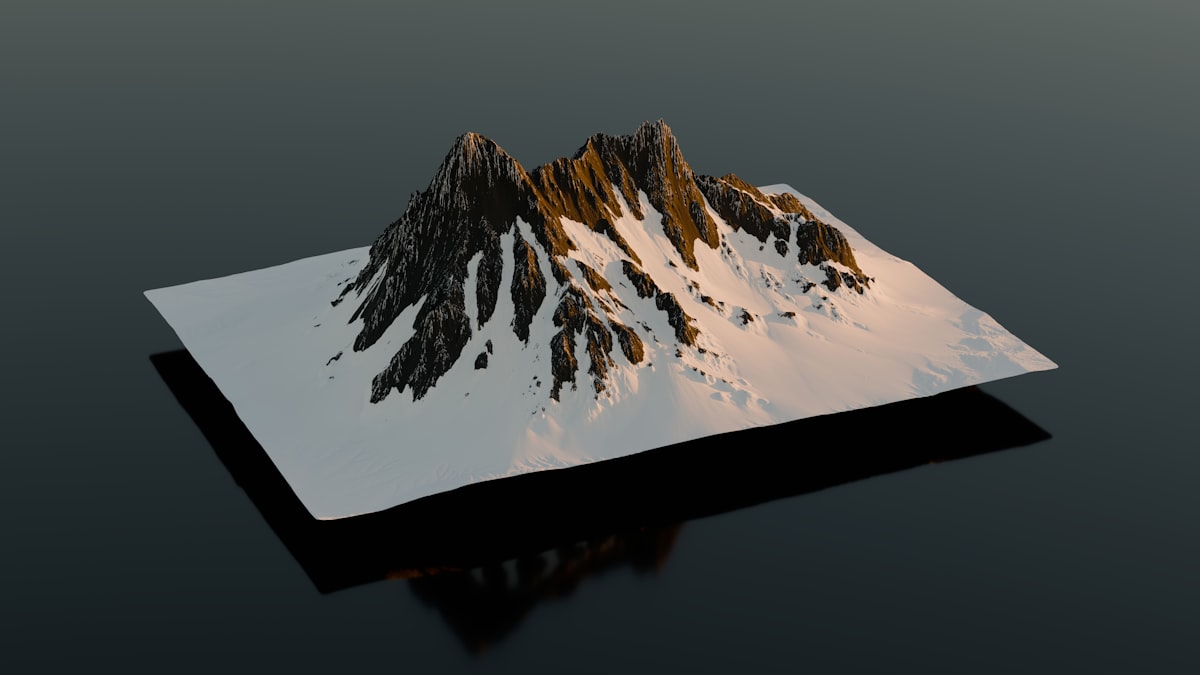
Make sure 3D terrain is enabled in your settings. This allows you to see mountains, valleys, and elevation changes in full 3D. In Google Earth Pro, go to Tools > Options > 3D View and ensure terrain quality is set to high.
Time Travel with Historical Imagery
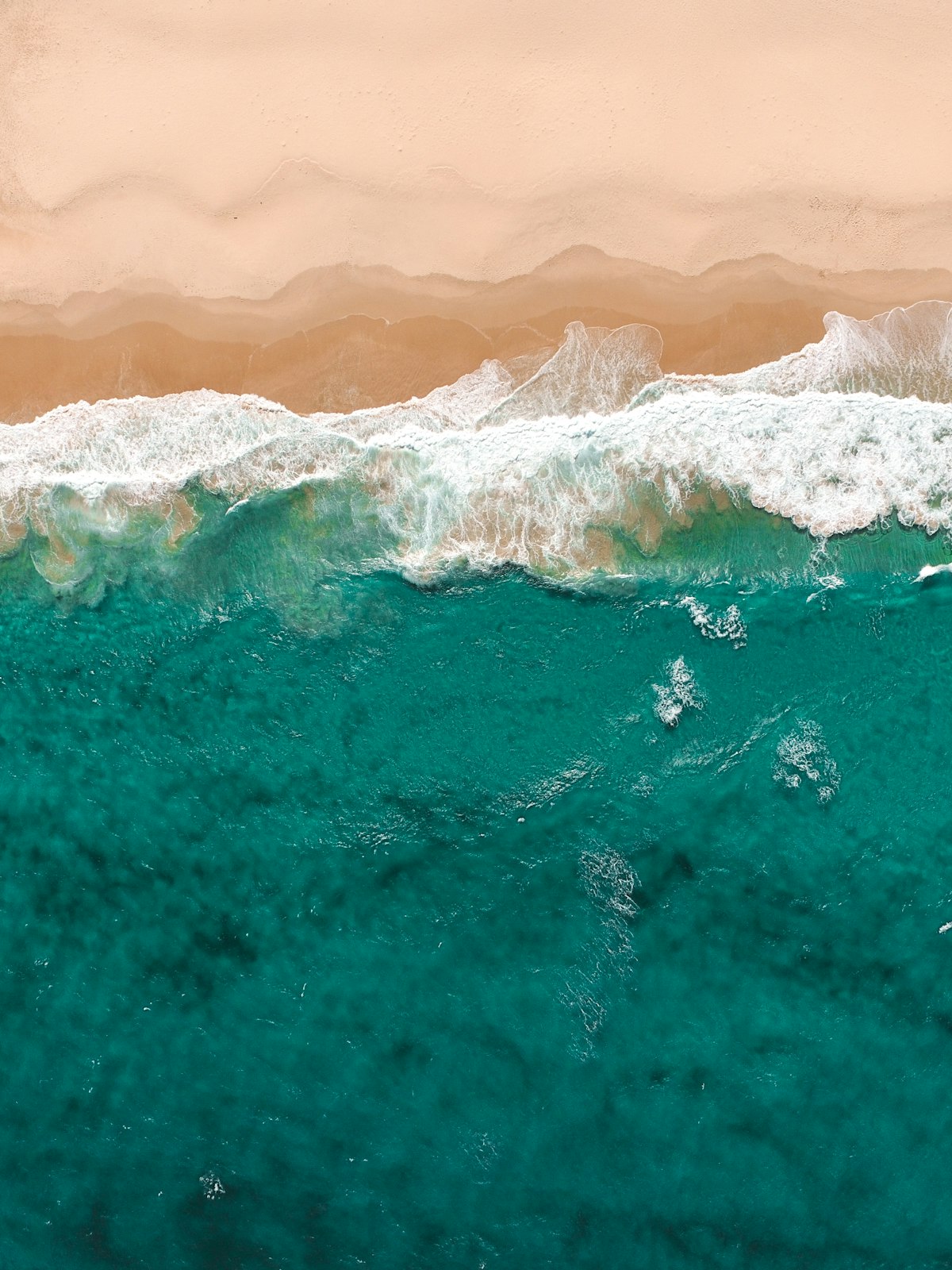
One of Google Earth's most powerful features is the ability to view historical satellite imagery, allowing you to see how locations have changed over time.
Accessing Historical Imagery
- Navigate to your location of interest
- In Google Earth Pro, click View > Historical Imagery, or click the clock icon in the toolbar
- In Google Earth Web, click the three dots menu and select "Timelapse"
- Use the time slider to browse through available imagery dates
Historical imagery dates back to the 1930s for some locations, though most areas have coverage starting from the 1980s or 1990s. Major cities often have the most complete historical records.
Historical Imagery Applications
Use historical imagery to research property development, track urban expansion, document environmental changes, or simply see what your neighborhood looked like decades ago. It's particularly valuable for real estate research and environmental studies.
Measurement Tools
Google Earth includes powerful measurement capabilities that many users overlook:
Measuring Distances
Use the ruler tool (click the ruler icon or press Ctrl+Shift+R in Pro) to measure straight-line distances, paths, or even areas. This is incredibly useful for:
- Planning hiking trails and estimating distances
- Measuring property boundaries
- Calculating area of land parcels
- Comparing sizes of buildings or features
Elevation Profiles
In Google Earth Pro, after drawing a path, right-click and select "Show Elevation Profile" to see a graph of elevation changes along your route. This is invaluable for hikers and cyclists planning routes.
Layers and Data Overlays
Google Earth's layer system adds rich contextual information to the satellite imagery:
- 3D Buildings: View 3D models of buildings in major cities
- Roads: Display road names and highway numbers
- Photos: See user-contributed photographs at specific locations
- Borders and Labels: Show country, state, and city boundaries
- Weather: View current weather conditions and forecasts
In Google Earth Pro, the Layers panel on the left sidebar lets you toggle these overlays on and off. Experiment with different combinations to find what's most useful for your exploration.
Voyager: Curated Tours
Google Earth's Voyager feature offers professionally curated virtual tours and stories:
- Natural wonders: Explore canyons, mountains, and unique geological formations
- Cultural heritage: Visit UNESCO World Heritage sites
- Games and quizzes: Test your geography knowledge
- News stories: See geographic context for current events
Access Voyager by clicking the ship's wheel icon in Google Earth. It's an excellent way to discover places you might never have thought to explore.

Street View Integration
Google Earth seamlessly integrates with Street View for ground-level exploration:
- Zoom into a location in satellite view
- Drag the pegman (yellow figure) onto a road highlighted in blue
- Explore the ground-level imagery
- Use historical Street View (clock icon) to see how streets looked in previous years
This combination of satellite and street-level views provides the most complete understanding of any location.
Creating and Sharing Projects
Google Earth lets you create custom projects to save and share your explorations:
Creating Placemarks
Mark specific locations with custom pins, add descriptions, and organize them into folders. This is perfect for trip planning, research projects, or creating virtual tours.
Drawing Paths and Polygons
Draw custom shapes to outline areas of interest, planned routes, or property boundaries. These can be saved and shared with others.
Sharing Projects
In Google Earth Web, click the Projects panel to create shareable collections of places and stories. You can collaborate with others or publish your project publicly.
Ready to Explore?
Use our satellite view tool to quickly access satellite imagery, then dive deeper with Google Earth's advanced features.
Start ExploringKey Takeaways
- Google Earth Pro offers the most advanced features for free
- Master keyboard shortcuts for efficient 3D navigation
- Historical imagery lets you see decades of changes
- Measurement tools are invaluable for planning and research
- Layers add rich context to satellite imagery
- Voyager offers curated tours for discovery
- Create projects to save and share your explorations